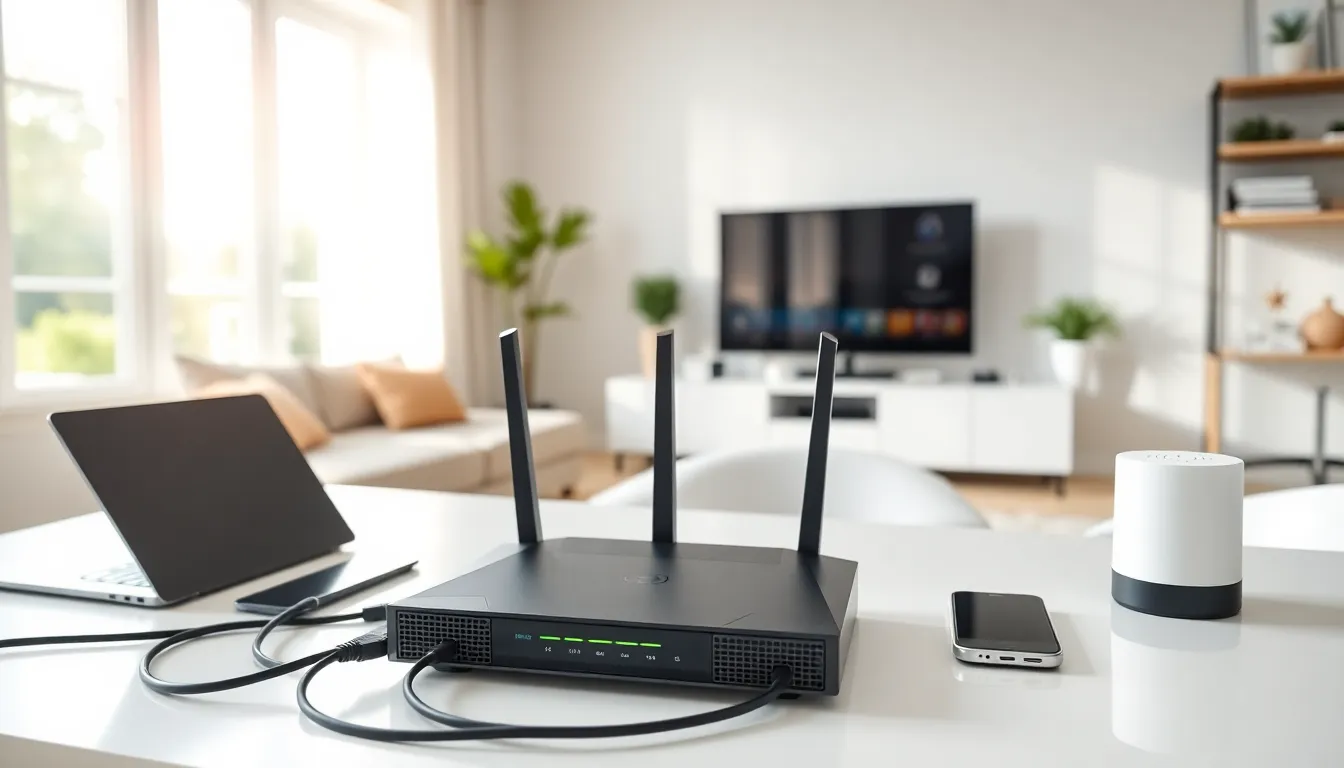

Home networking for beginners can feel overwhelming at first glance. Routers, modems, IP addresses, Wi-Fi bands, the technical terms pile up fast. But here’s the good news: setting up a reliable home network is simpler than most people think. This guide breaks down the basics in plain language. Readers will learn what equipment they need, how to connect everything, and how to keep their network safe from intruders. Whether someone wants to stream movies without buffering or connect smart home devices, a solid home network makes it all possible.
Table of Contents
ToggleKey Takeaways
- Home networking for beginners starts with understanding that a network connects all household devices to share internet access and communicate with each other.
- Essential equipment includes a modem, router, Ethernet cables, and possibly Wi-Fi extenders or mesh systems for larger homes.
- Setting up a home network takes about 30 minutes—connect your modem, link it to your router, configure basic settings, and connect your devices.
- Always change default router credentials, use WPA3 or WPA2 encryption, and create a guest network to keep your home network secure.
- Investing in a quality router prevents common frustrations like slow speeds, dropped connections, and poor Wi-Fi coverage.
- Regularly update your router’s firmware and monitor connected devices to protect against unauthorized access.
What Is a Home Network and Why Do You Need One?
A home network connects devices within a household so they can share data and internet access. This includes computers, smartphones, tablets, smart TVs, gaming consoles, and smart home gadgets like thermostats or security cameras.
At its core, a home network has two main jobs. First, it connects all devices to the internet through a single connection from an Internet Service Provider (ISP). Second, it allows devices to communicate with each other, so a user can print from a laptop to a wireless printer or stream photos from a phone to a TV.
Why does this matter? Modern households own an average of 22 connected devices, according to recent industry reports. Without a proper home network, each device would need its own internet connection. That’s expensive and impractical.
A well-designed home network also improves performance. Devices get dedicated bandwidth instead of fighting for scraps. Video calls stay clear. Games don’t lag. Downloads finish faster.
For beginners learning home networking, understanding this foundation is essential. The network acts as the central hub that keeps a household’s digital life running smoothly.
Essential Equipment for Your Home Network
Building a home network requires a few key pieces of hardware. Here’s what beginners need to know about each component.
Modem
The modem connects a home to the ISP. It translates the signal from the cable, fiber, or DSL line into data that devices can use. Most ISPs provide a modem with their service, though users can buy their own to avoid rental fees.
Router
The router distributes the internet connection to multiple devices. It creates the local network and assigns IP addresses to each connected device. Modern routers broadcast Wi-Fi signals so devices can connect wirelessly.
Many ISPs offer combination modem-router units called gateways. These work fine for small spaces. Larger homes may benefit from a separate router with stronger coverage.
Ethernet Cables
Wired connections offer faster speeds and more stability than Wi-Fi. Ethernet cables connect devices directly to the router. Desktop computers, gaming consoles, and smart TVs often perform better with wired connections.
Wi-Fi Extenders or Mesh Systems
Larger homes may have Wi-Fi dead zones where the signal doesn’t reach. Wi-Fi extenders boost the existing signal to cover more area. Mesh systems use multiple access points to create seamless coverage throughout a home.
For home networking beginners, starting with a quality router makes the biggest difference. Cheap routers often cause the frustrations people blame on their ISP, slow speeds, dropped connections, and poor range.
How to Set Up Your Home Network Step by Step
Setting up a home network takes about 30 minutes for most beginners. Follow these steps to get connected.
Step 1: Connect the Modem
Plug the modem into the wall outlet (coax cable for cable internet, phone jack for DSL, or Ethernet for fiber). Connect the modem’s power adapter and turn it on. Wait 2-3 minutes for the lights to stabilize.
Step 2: Connect the Router
Use an Ethernet cable to connect the modem to the router’s WAN or Internet port. This port is usually a different color from the other ports. Plug in the router’s power and turn it on.
Step 3: Access the Router Settings
Connect a computer to the router using an Ethernet cable or the default Wi-Fi network (credentials are printed on the router). Open a web browser and type the router’s IP address, commonly 192.168.1.1 or 192.168.0.1. Log in using the default username and password from the router’s label.
Step 4: Configure Basic Settings
Change the default network name (SSID) to something recognizable. Create a strong Wi-Fi password. Select WPA3 security if available, or WPA2 as a backup. Update the router’s firmware if prompted.
Step 5: Connect Devices
On each device, search for available Wi-Fi networks. Select the new network name and enter the password. Devices should connect within seconds.
Home networking for beginners becomes much easier once the initial setup is complete. Most routers also have apps that simplify management from a smartphone.
Tips for Securing Your Home Network
An unsecured home network invites trouble. Hackers can steal personal data, use the connection for illegal activity, or access smart home devices. These security tips help beginners protect their networks.
Change Default Credentials
Routers ship with generic usernames and passwords like “admin/admin.” Attackers know these defaults. Change both the admin login and Wi-Fi password immediately after setup.
Use Strong Encryption
WPA3 is the current standard for Wi-Fi security. WPA2 remains acceptable if WPA3 isn’t available. Never use WEP, it’s outdated and easily cracked.
Create a Guest Network
Most routers support guest networks. These give visitors internet access without exposing the main network. Smart home devices can also run on a guest network to isolate them from computers and phones.
Keep Firmware Updated
Router manufacturers release updates that fix security holes. Enable automatic updates or check manually every few months. Outdated firmware leaves networks vulnerable.
Disable Remote Management
Unless someone needs to access router settings from outside the home, turn off remote management. This closes a potential entry point for attackers.
Monitor Connected Devices
Router apps and dashboards show all connected devices. Review this list periodically. Unknown devices could indicate unauthorized access.
Home networking beginners often overlook security. Taking these steps during initial setup prevents headaches later. A few minutes of configuration can save hours of dealing with compromised accounts or stolen data.