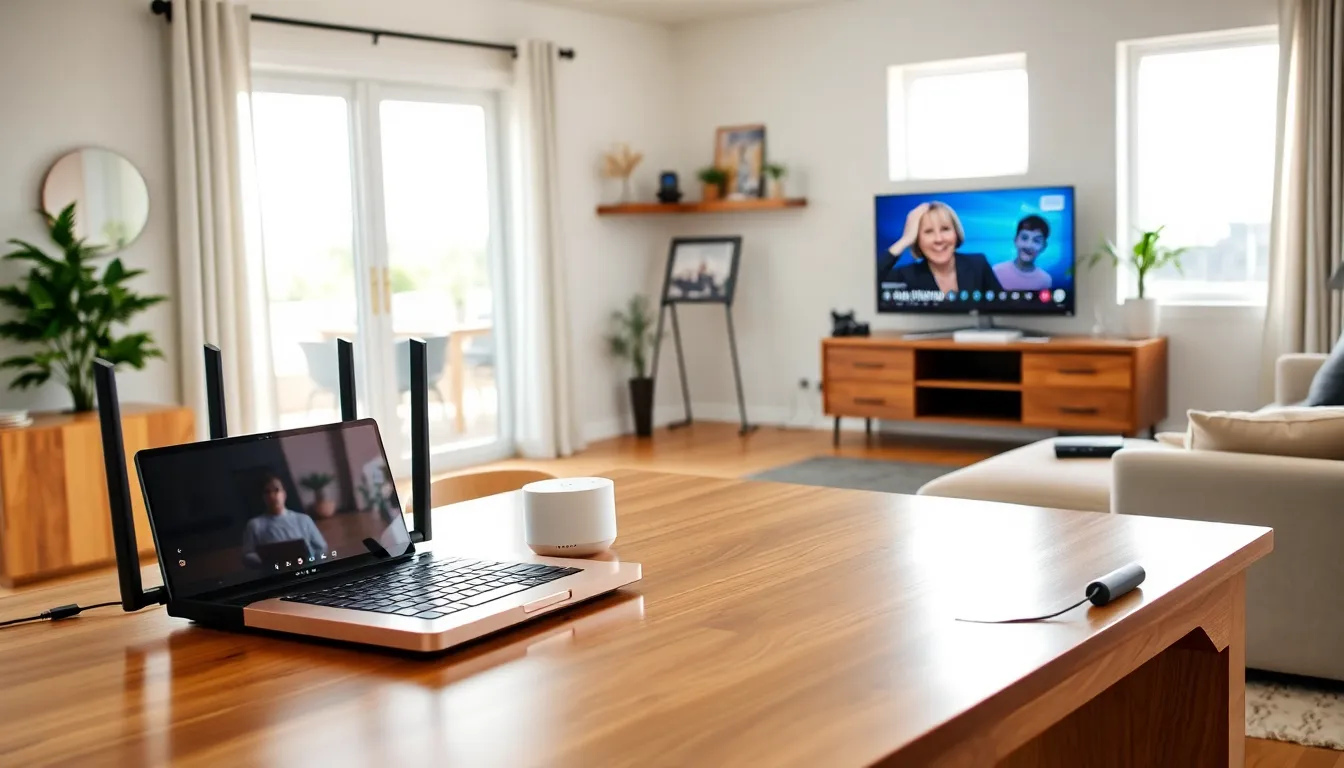

Home networking examples range from simple router-and-device configurations to advanced setups that handle gaming, streaming, and smart home automation. Every household has different needs, and the right network design depends on how people use their internet connection. A family of streamers requires different equipment than a remote worker handling video calls all day.
This guide breaks down five practical home networking examples. Each section covers a specific use case, the equipment involved, and tips for getting the best performance. Whether someone needs a basic setup or a full smart home configuration, these examples provide a clear starting point.
Table of Contents
ToggleKey Takeaways
- Home networking examples range from basic router setups to advanced configurations for streaming, smart homes, gaming, and remote work.
- Wired Ethernet connections provide the most reliable performance for gaming, home offices, and streaming devices.
- Network segmentation using guest networks or VLANs keeps smart home devices isolated from sensitive data for improved security.
- Quality of Service (QoS) settings allow you to prioritize important traffic like video calls or streaming over background downloads.
- Mesh network systems extend Wi-Fi coverage throughout larger homes, eliminating dead zones in distant rooms.
- A backup mobile hotspot can save a workday when your primary internet connection fails.
Basic Home Network Setup
A basic home network setup works well for households with light internet use. This includes web browsing, email, and occasional video streaming. The setup requires minimal equipment and costs less than more advanced configurations.
Essential Equipment
The foundation of any home networking example starts with three components:
- Modem: Connects to the internet service provider (ISP) and brings internet into the home
- Router: Creates a local network and distributes the connection to devices
- Devices: Laptops, smartphones, tablets, and smart TVs that connect via Wi-Fi or Ethernet
Many ISPs provide a modem-router combo unit. These work fine for basic needs, though separate devices often deliver better performance.
Setup Steps
- Connect the modem to the ISP’s coaxial or fiber line
- Connect the router to the modem using an Ethernet cable
- Configure the router’s Wi-Fi name and password through its admin interface
- Connect devices to the new Wi-Fi network
For best results, place the router in a central location. Walls, floors, and large appliances weaken Wi-Fi signals. A router sitting in a corner basement won’t serve the upstairs bedrooms well.
This basic home networking example handles 5-10 devices comfortably. Households needing more coverage should consider the configurations in the following sections.
Streaming and Entertainment Network
Streaming households demand more from their home network. Multiple 4K streams, music services, and connected speakers all compete for bandwidth. This home networking example prioritizes consistent throughput and coverage throughout the living space.
Recommended Equipment
- Dual-band or tri-band router: Supports 2.4 GHz and 5 GHz frequencies (tri-band adds a second 5 GHz channel)
- Mesh network system: Extends coverage using multiple access points
- Ethernet switch: Connects stationary devices like smart TVs and streaming boxes directly
Wired connections beat Wi-Fi for streaming reliability. A 4K stream needs about 25 Mbps of consistent bandwidth. Hardwiring the main TV eliminates buffering issues that wireless connections sometimes cause.
Quality of Service Settings
Most modern routers include Quality of Service (QoS) settings. These let users prioritize streaming traffic over other activities. When someone starts a large download, QoS ensures the Netflix stream keeps running smoothly.
To configure QoS:
- Access the router’s admin panel
- Find the QoS or Traffic Management section
- Enable QoS and set streaming devices as high priority
- Save the settings and restart the router
A mesh system helps larger homes. Traditional routers lose signal strength over distance. Mesh nodes placed throughout the house maintain strong connections in every room. This home networking example works best for households with three or more regular streamers.
Smart Home Network Configuration
Smart home devices create unique networking challenges. A typical smart home might include dozens of connected devices: lights, thermostats, door locks, cameras, and voice assistants. This home networking example addresses both performance and security concerns.
Device Categories
Smart home devices fall into two categories based on their network requirements:
| Device Type | Bandwidth Need | Latency Sensitivity |
|---|---|---|
| Cameras | High | Medium |
| Smart displays | Medium | Low |
| Sensors/switches | Very low | Low |
| Voice assistants | Low | High |
Most smart home devices use the 2.4 GHz band. They need range more than speed. The 5 GHz band offers faster speeds but covers less area.
Network Segmentation
Security experts recommend creating separate networks for smart home devices. Many routers support guest networks or VLANs (Virtual Local Area Networks). This keeps IoT devices isolated from computers and phones that store sensitive data.
A segmented home network setup might look like this:
- Primary network: Computers, phones, tablets
- IoT network: Smart home devices, cameras, sensors
- Guest network: Visitors’ devices
This approach limits damage if a smart device gets compromised. An attacker gaining access through a cheap smart plug can’t reach the home office computer on a different network segment.
Wi-Fi 6 routers handle large numbers of devices better than older models. The OFDMA technology allows simultaneous communication with many devices instead of serving them one at a time.
Home Office Network Setup
Remote work demands reliable internet. Video calls, file uploads, and VPN connections all require stable bandwidth. This home networking example focuses on consistency and backup options.
Equipment Priorities
Home office networks benefit from:
- Wired Ethernet connection: A direct cable to the router provides the most stable connection for work computers
- Uninterruptible Power Supply (UPS): Keeps the router and modem running during brief power outages
- Mobile hotspot: Serves as backup internet if the primary connection fails
Video conferencing needs about 3-4 Mbps upload speed per participant. Most home internet plans offer much slower upload speeds than download speeds. A household with multiple people on video calls simultaneously should verify their plan provides adequate upload bandwidth.
Reducing Interference
Home office users sharing bandwidth with family members face competition. A few solutions help:
- Schedule large downloads: Set system updates and backups to run overnight
- Use QoS: Prioritize work devices during business hours
- Consider a dedicated access point: A separate router for the home office ensures work traffic stays isolated
The physical workspace matters too. Position the work computer close to the router or run an Ethernet cable directly. Powerline adapters offer another option, they use electrical wiring to extend the network without new cables through walls.
This home networking example suits anyone who relies on internet access for income. The backup hotspot alone can save a workday when the ISP has an outage.
Gaming Network Optimization
Online gaming requires low latency more than raw bandwidth. A game might use only 1-3 Mbps, but every millisecond of delay affects performance. This home networking example prioritizes ping times and connection stability.
Wired vs. Wireless
Serious gamers should use Ethernet cables. Period. Wi-Fi introduces variable latency that wired connections avoid. Even excellent Wi-Fi adds 2-5ms compared to Ethernet. That might not sound like much, but competitive players notice the difference.
If running cables isn’t practical, these wireless options rank from best to worst:
- Wi-Fi 6/6E on 5 GHz or 6 GHz band
- MoCA adapters using coaxial cables
- Powerline adapters (quality varies by home electrical system)
- Standard Wi-Fi on 5 GHz band
Router Configuration for Gaming
Gaming-optimized settings include:
- Port forwarding: Opens specific ports for game servers, reducing connection issues
- UPnP (Universal Plug and Play): Automatically handles port requirements for most games
- Gaming mode/QoS: Prioritizes gaming traffic over other network activity
Some gaming routers include geo-filtering features. These let players choose which server regions to connect to, ensuring games match them with nearby servers for lower ping.
Bandwidth Considerations
Game downloads and updates consume far more bandwidth than actual gameplay. A console downloading a 100GB game will choke the network for hours. Smart households schedule these downloads during off-peak times.
This home networking example serves both casual and competitive gamers. The wired connection recommendation applies universally, it’s the single biggest improvement most gamers can make.