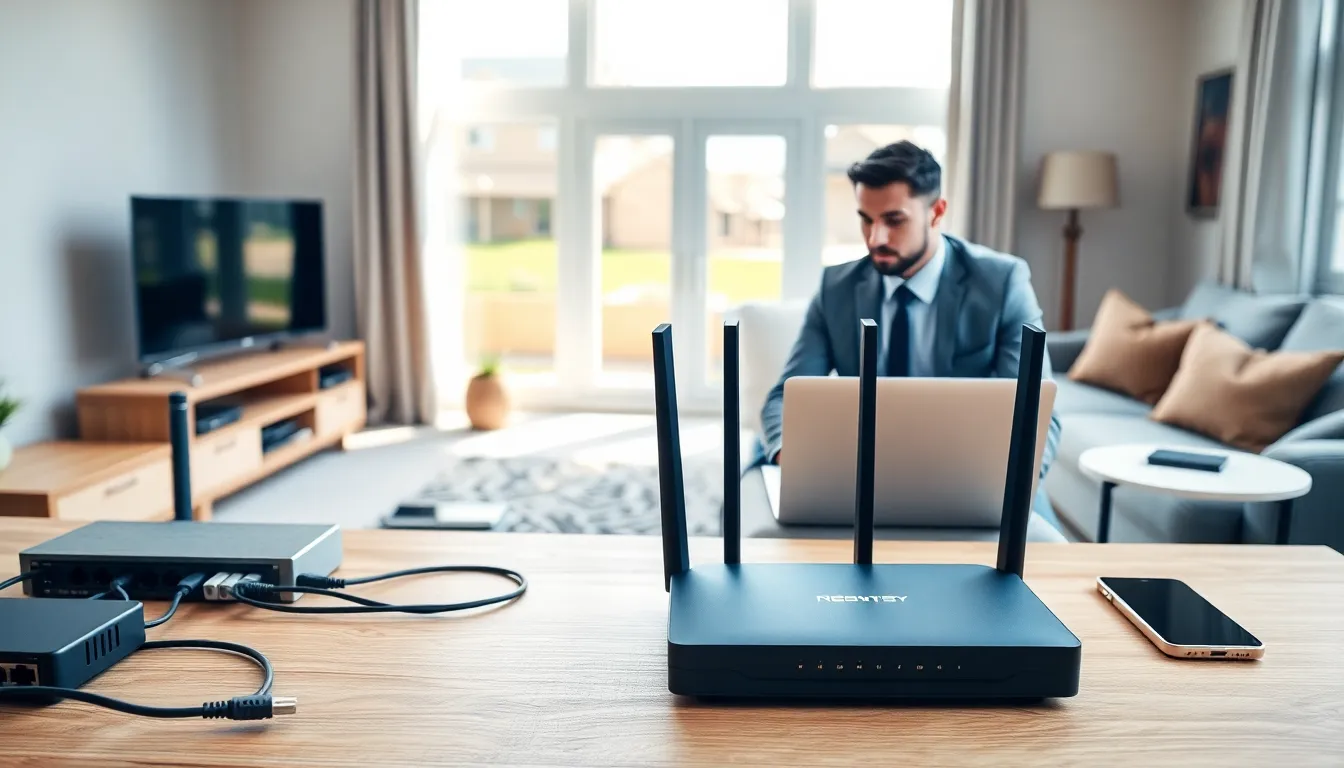

A solid home networking guide can save hours of frustration and help anyone build a connected home that actually works. Most households now run dozens of devices, smartphones, smart TVs, laptops, gaming consoles, and IoT gadgets, all competing for bandwidth. Without proper setup, slow speeds and dead zones become daily annoyances. This guide breaks down home networking into clear, actionable steps. Readers will learn what equipment they need, how to set everything up, and how to keep their network fast and secure. Whether someone is upgrading an existing setup or starting from scratch, this home networking guide provides the foundation for reliable connectivity throughout any home.
Table of Contents
ToggleKey Takeaways
- A comprehensive home networking guide helps you connect all devices efficiently and eliminate dead zones throughout your home.
- Position your router centrally and elevated for optimal Wi-Fi coverage, avoiding interference from metal objects and thick walls.
- Use a hybrid approach with wired ethernet for stationary high-bandwidth devices and Wi-Fi for mobile devices to maximize performance.
- Secure your network by enabling WPA3 encryption, creating strong passwords, and setting up a separate guest network for visitors and IoT devices.
- Mesh Wi-Fi systems are ideal for larger homes, providing seamless connectivity across multiple rooms without signal drops.
- Regularly update router firmware, restart monthly, and use QoS settings to maintain peak network performance.
Understanding the Basics of Home Networking
A home network connects all internet-enabled devices within a household. This connection allows devices to share data, access the internet, and communicate with each other. Understanding how these components work together is the first step in any home networking guide.
How Home Networks Work
The internet service provider (ISP) delivers an internet connection to the home through a modem. The modem converts this signal into data that devices can use. A router then distributes this connection to multiple devices, either through ethernet cables or Wi-Fi signals.
Most modern home networks use Wi-Fi as the primary connection method. Wi-Fi operates on two main frequency bands: 2.4 GHz and 5 GHz. The 2.4 GHz band offers wider coverage but slower speeds. The 5 GHz band delivers faster speeds but covers less area. Many newer routers also support 6 GHz through Wi-Fi 6E, which reduces congestion in busy households.
Wired vs. Wireless Connections
Wired ethernet connections provide the most stable and fastest speeds. They work best for stationary devices like desktop computers, gaming consoles, and smart TVs. Wireless connections offer convenience and mobility, making them ideal for laptops, tablets, and smartphones.
A well-designed home network often uses both connection types. High-bandwidth devices benefit from wired connections, while mobile devices rely on Wi-Fi. This hybrid approach maximizes performance across all devices.
Essential Equipment for Your Home Network
Building a reliable home network requires the right equipment. Each component serves a specific purpose, and choosing quality hardware makes a noticeable difference in performance.
Modem
The modem connects the home to the ISP’s network. Cable internet requires a DOCSIS modem, while fiber connections use an optical network terminal (ONT). Some ISPs provide modems, but purchasing a compatible modem often saves money on rental fees and offers better performance.
Router
The router is the heart of any home network. It manages traffic between devices and the internet. When selecting a router, consider these factors:
- Coverage area: Larger homes need routers with stronger signals or mesh systems
- Speed ratings: Match the router’s capabilities to the ISP’s speed tier
- Number of devices: Households with many devices need routers that handle multiple connections
- Wi-Fi standard: Wi-Fi 6 (802.11ax) routers offer better performance than older Wi-Fi 5 models
Mesh Wi-Fi Systems
Mesh systems solve coverage problems in larger homes. These systems use multiple access points that work together to blanket the entire home in Wi-Fi. They eliminate dead zones and provide seamless connectivity as users move between rooms.
Ethernet Cables and Switches
Cat6 or Cat6a ethernet cables support speeds up to 10 Gbps. A network switch expands the number of available wired connections beyond what the router provides. This setup works well for home offices or entertainment centers with multiple wired devices.
Setting Up Your Home Network Step by Step
Setting up a home network doesn’t require technical expertise. Following these steps ensures a smooth installation process.
Step 1: Position Your Equipment
Place the router in a central location, elevated off the floor. Avoid placing it near metal objects, microwaves, or thick walls that block signals. The ideal spot is often a central room on the main floor of the home.
Step 2: Connect the Hardware
Connect the modem to the ISP’s incoming line. Then connect the modem to the router’s WAN port using an ethernet cable. Plug both devices into power outlets and wait for them to fully boot up. Status lights will indicate when the connection is active.
Step 3: Configure Your Router
Access the router’s admin panel through a web browser. The default address is usually 192.168.1.1 or 192.168.0.1. Change the default admin password immediately. Then configure these settings:
- Create a unique network name (SSID)
- Set a strong Wi-Fi password with at least 12 characters
- Enable WPA3 encryption if available, or WPA2 as a minimum
- Update the router firmware to the latest version
Step 4: Connect Your Devices
Connect wired devices first using ethernet cables. Then connect wireless devices by selecting the network name and entering the password. Most devices remember these credentials for automatic future connections.
Step 5: Test Your Network
Run a speed test to verify the connection matches the ISP’s advertised speeds. Walk through the home to identify any weak signal areas. This information helps determine if additional equipment like mesh nodes or range extenders might help.
Tips for Optimizing Network Performance and Security
A home network requires ongoing attention to maintain peak performance and security. These tips help keep everything running smoothly.
Performance Optimization
Update firmware regularly. Router manufacturers release updates that fix bugs and improve performance. Check for updates monthly or enable automatic updates if available.
Choose the right channel. Wi-Fi networks can experience interference from neighboring networks. Use a Wi-Fi analyzer app to find less congested channels. For 2.4 GHz, channels 1, 6, and 11 work best. The 5 GHz band has more channel options with less overlap.
Prioritize bandwidth. Many routers include Quality of Service (QoS) settings. These settings let users prioritize traffic for specific devices or applications. Video calls and gaming benefit from higher priority settings.
Restart periodically. Rebooting the router monthly clears cached data and refreshes connections. This simple step often resolves slowdowns and connectivity issues.
Security Best Practices
Use strong passwords. The Wi-Fi password should contain a mix of letters, numbers, and symbols. Avoid common words or personal information.
Enable the guest network. Create a separate network for visitors and IoT devices. This keeps the main network isolated from potentially vulnerable devices.
Disable WPS. Wi-Fi Protected Setup has known security flaws. Turning it off prevents unauthorized access through this vulnerability.
Monitor connected devices. Check the router’s admin panel periodically to see all connected devices. Remove any unrecognized devices and change the password if suspicious activity appears.