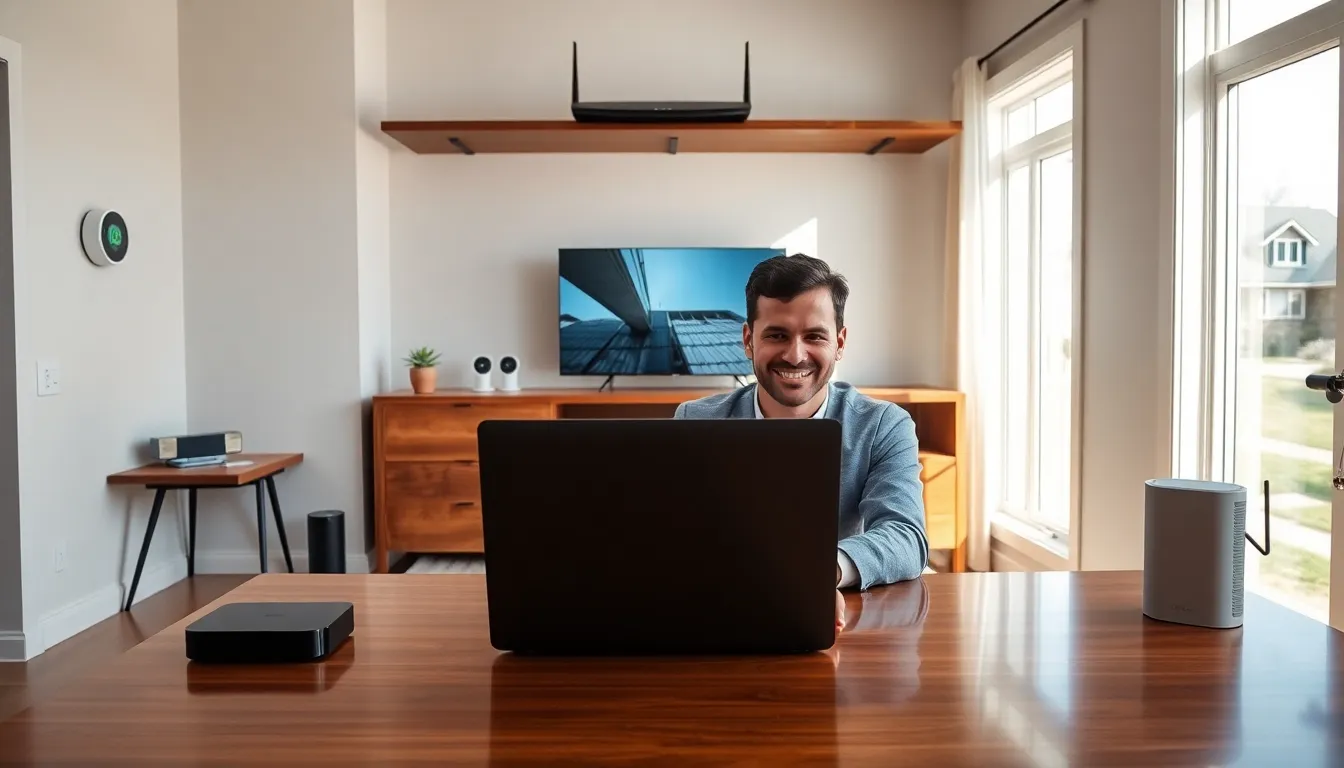

Strong home networking ideas can transform a frustrating internet experience into something seamless. Slow speeds, dead zones, and dropped connections affect millions of households. The good news? Most of these problems have straightforward fixes.
Whether someone works from home, streams 4K content, or games online, a well-designed network makes all the difference. This guide covers practical home networking ideas that improve connectivity and performance without requiring a technical background. From router placement to mesh systems, these strategies deliver real results.
Table of Contents
ToggleKey Takeaways
- Assess your current network by running speed tests in multiple rooms and mapping dead zones before making any upgrades.
- Place your router in a central, elevated location away from walls, metal objects, and appliances that cause interference.
- Mesh Wi-Fi systems eliminate coverage gaps in large homes by using multiple units that work together as one seamless network.
- Use wired ethernet connections for high-demand devices like gaming consoles, desktop computers, and smart TVs to reduce latency and buffering.
- Secure your home network by changing default passwords, enabling WPA3 encryption, and keeping router firmware updated.
- These home networking ideas can double or triple your effective coverage without requiring advanced technical skills.
Assess Your Current Network Setup
Before making changes, homeowners should understand what they’re working with. A quick assessment reveals bottlenecks and weak points.
First, run a speed test from multiple locations in the home. Services like Speedtest.net or Fast.com show download and upload speeds instantly. Compare these numbers to the internet plan’s advertised speeds. If the router delivers 100 Mbps but the bedroom only gets 25 Mbps, there’s a coverage problem.
Next, count the connected devices. Modern households often have 15 to 25 devices pulling bandwidth, phones, tablets, smart TVs, thermostats, security cameras, and more. Older routers struggle with this load.
Check the router’s age too. Equipment older than five years likely uses outdated Wi-Fi standards. Wi-Fi 5 (802.11ac) routers still work fine for basic use, but Wi-Fi 6 (802.11ax) handles more devices and delivers faster speeds.
Finally, map out dead zones. Walk through each room with a phone and note where the signal drops. This information guides decisions about router placement, extenders, or mesh systems.
Upgrade Your Router Placement and Hardware
Router placement affects network performance more than most people realize. A router tucked in a basement corner or buried in a closet can’t deliver strong signals throughout a home.
Optimal Router Positioning
Place the router in a central location, elevated off the floor. Wi-Fi signals travel outward in all directions, so a center position covers the most area. Keep it away from thick walls, metal objects, microwaves, and baby monitors, all of these interfere with wireless signals.
A router on the main floor typically serves a two-story home better than one in the basement. If the modem connection point limits placement options, consider a longer ethernet cable to reach a better spot.
When to Upgrade Hardware
Sometimes placement tweaks aren’t enough. Signs that indicate a router upgrade:
- Frequent disconnections or slow speeds even though good placement
- Difficulty supporting multiple video calls simultaneously
- No support for Wi-Fi 6 in homes with many smart devices
- Missing features like quality of service (QoS) settings
Mid-range Wi-Fi 6 routers from brands like TP-Link, ASUS, or Netgear cost between $100 and $200 and handle most household needs. These home networking ideas alone can double or triple effective coverage.
Extend Coverage With Mesh Systems or Access Points
Large homes, multi-story buildings, and spaces with thick walls often need more than a single router. Two main solutions exist: mesh Wi-Fi systems and access points.
Mesh Wi-Fi Systems
Mesh systems use multiple units that work together as one network. Users move through the house without switching networks or losing connection. Popular options include Google Nest WiFi, Amazon Eero, and Netgear Orbi.
A typical mesh setup includes a main router unit and two or three satellite units. Place satellites halfway between the main router and dead zones. Most systems offer app-based setup that takes under 15 minutes.
Mesh systems cost more upfront, expect to pay $200 to $500 for a quality three-pack. But they eliminate coverage gaps and provide consistent speeds throughout a home.
Wired Access Points
For those willing to run ethernet cables, wired access points deliver even better performance than mesh. Each access point connects directly to the main router via cable, eliminating wireless backhaul limitations.
This approach works especially well during renovations or new construction. Running ethernet to key locations (home office, living room, upper floors) creates a foundation for excellent home networking ideas that last for years.
Use Wired Connections for High-Demand Devices
Wi-Fi offers convenience, but ethernet delivers reliability. Devices that demand consistent bandwidth benefit from wired connections.
Devices That Should Be Hardwired
- Gaming consoles: Latency matters in online gaming. Ethernet reduces ping times and eliminates lag spikes.
- Desktop computers: Work-from-home setups need stable connections for video calls and large file transfers.
- Smart TVs and streaming devices: 4K streaming requires steady bandwidth. Wired connections prevent buffering.
- Network-attached storage (NAS): Backing up files or running a media server works best over ethernet.
Powerline and MoCA Adapters
Running ethernet cables through walls isn’t always practical. Powerline adapters send network signals through existing electrical wiring. They’re not as fast as direct ethernet, but they beat Wi-Fi for stability.
MoCA adapters use coaxial cable (the same cable used for cable TV) to create a wired network. Homes with coax outlets in multiple rooms can achieve near-gigabit speeds without new wiring.
These home networking ideas bridge the gap between wireless convenience and wired performance.
Secure and Organize Your Home Network
A fast network means nothing if it’s vulnerable to attacks or cluttered with forgotten devices. Security and organization matter.
Basic Security Steps
Change the default router admin password immediately. Hackers know factory passwords and exploit them regularly. Use a strong, unique password for the Wi-Fi network itself, avoid common phrases or personal information.
Enable WPA3 encryption if the router supports it. WPA2 remains acceptable but WPA3 offers better protection. Disable WPS (Wi-Fi Protected Setup), as it creates security vulnerabilities.
Keep router firmware updated. Manufacturers release patches that fix security holes and improve performance. Most modern routers offer automatic updates.
Network Organization Tips
Create a guest network for visitors. This keeps personal devices separate from temporary users and IoT gadgets with weaker security.
Assign static IP addresses to important devices. This makes network management easier and can improve performance for devices like printers or servers.
Periodically review connected devices and remove anything unfamiliar. Old phones, retired tablets, and devices from previous guests may still connect automatically.
These home networking ideas protect the household while keeping everything running smoothly.