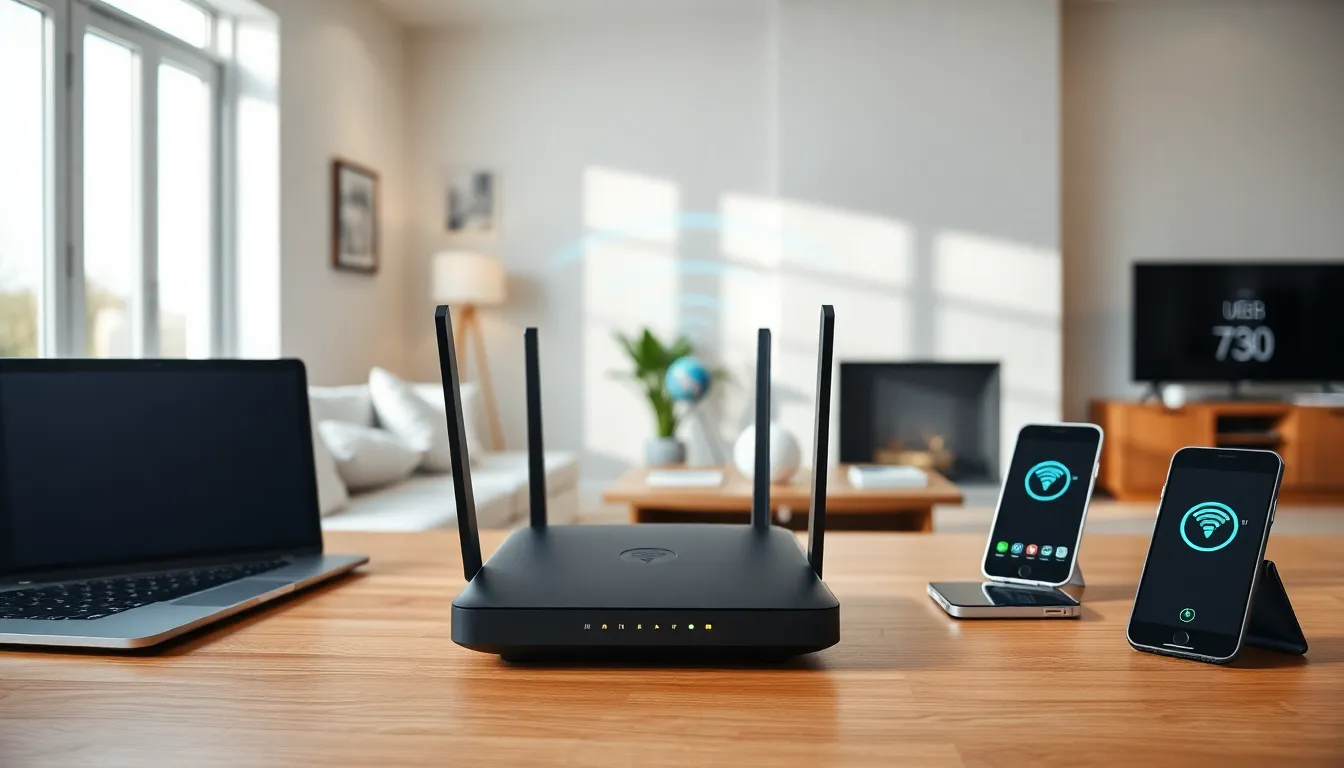

Effective home networking strategies can transform a sluggish internet experience into a fast, reliable connection. Many households struggle with dead zones, buffering videos, and dropped connections. These problems often stem from poor planning rather than insufficient internet speeds. The right approach considers device placement, security settings, and ongoing maintenance. This guide covers practical steps to build a home network that actually works. Whether someone streams 4K content, works remotely, or simply browses the web, these strategies will help create a stable foundation for all connected devices.
Table of Contents
ToggleKey Takeaways
- Effective home networking strategies start with assessing your current setup—count all connected devices and run speed tests from multiple rooms to identify bottlenecks.
- Place your router in a central, elevated location away from electronics and metal objects to maximize Wi-Fi coverage throughout your home.
- Choose a Wi-Fi 6 router or mesh system for homes over 2,000 square feet to handle multiple devices efficiently.
- Secure your network by using WPA3 encryption, creating strong unique passwords, and setting up a separate guest network for visitors and smart devices.
- Use wired ethernet connections for stationary devices like gaming consoles and smart TVs to free up wireless bandwidth for mobile devices.
- Monitor your network regularly with router apps and schedule periodic reboots to maintain optimal performance.
Assess Your Network Needs and Current Setup
Before buying new equipment, homeowners should evaluate their current network situation. This assessment reveals bottlenecks and helps prioritize improvements.
Count Connected Devices
Most households underestimate how many devices connect to their network. Smart TVs, gaming consoles, phones, tablets, laptops, smart speakers, thermostats, and security cameras all compete for bandwidth. A family of four might easily have 15-25 connected devices. Write down every device that uses Wi-Fi or ethernet.
Test Current Speeds
Run speed tests from multiple locations in the home. Use sites like Speedtest.net or Fast.com to measure download and upload speeds. Test at different times of day since network congestion varies. Compare results to the internet plan’s advertised speeds. If speeds fall significantly short, the problem might be equipment or placement.
Identify Usage Patterns
Consider how household members use the internet. Video conferencing requires stable upload speeds. Gaming demands low latency. Streaming services need consistent download bandwidth. Home networking strategies should match these specific needs. Someone who works from home has different requirements than someone who only checks email.
Document Problem Areas
Note which rooms have weak signals or frequent disconnections. These dead zones guide router placement decisions and may indicate a need for range extenders or mesh systems.
Choose the Right Router and Placement
The router serves as the heart of any home network. Selecting appropriate hardware and positioning it correctly makes a significant difference in performance.
Router Selection Criteria
Look for routers that support Wi-Fi 6 (802.11ax) technology. This standard handles multiple devices more efficiently than older versions. For homes larger than 2,000 square feet, mesh router systems often outperform single-unit routers. Check that the router supports both 2.4 GHz and 5 GHz bands, dual-band capability lets users balance range and speed.
Processing power matters too. Routers with faster processors handle more simultaneous connections without slowing down. For households with heavy usage, look for models with at least a dual-core processor.
Optimal Router Placement
Position the router in a central location. Walls, floors, and furniture absorb Wi-Fi signals. Placing the router in a corner or closet limits its effective range. Elevate the router off the floor, a shelf or table at chest height works well.
Keep the router away from other electronics. Microwaves, cordless phones, and baby monitors can interfere with Wi-Fi signals. Metal objects and mirrors also reflect and weaken signals.
For multi-story homes, place the router on the middle floor. Wi-Fi signals travel outward and slightly downward, so this position provides the best coverage above and below.
Optimize Wi-Fi Coverage Throughout Your Home
Even a good router might not reach every corner of a home. Several home networking strategies can extend coverage effectively.
Mesh Networks
Mesh systems use multiple nodes that work together as one network. Devices automatically connect to the nearest node as users move through the house. This eliminates the need to manually switch networks. Popular mesh systems include products from Eero, Google Nest, and TP-Link Deco.
Wi-Fi Extenders
Range extenders boost signals to distant areas. They cost less than mesh systems but create a separate network name. Users must manually switch between networks, which can be inconvenient. Extenders also reduce overall speed since they communicate with both devices and the main router.
Powerline Adapters
These devices transmit internet signals through existing electrical wiring. Plug one adapter near the router and another in a distant room. They work best in homes with newer electrical systems and provide more stable connections than wireless extenders.
Ethernet Connections
Wired connections remain the fastest and most reliable option. Use ethernet cables for stationary devices like desktop computers, gaming consoles, and smart TVs. This frees up wireless bandwidth for mobile devices. Cat 6 cables support speeds up to 10 Gbps and are suitable for most home networking strategies.
Prioritize Network Security
An unsecured network invites problems. Hackers can steal personal information, use bandwidth for illegal activities, or attack connected devices. Strong security protects the entire household.
Create Strong Passwords
Change the default router password immediately. Default passwords are publicly available and easy targets. Use a unique password with at least 12 characters, mixing uppercase letters, lowercase letters, numbers, and symbols. Avoid personal information like birthdates or pet names.
Set a different password for the Wi-Fi network itself. Use WPA3 encryption if available, it’s the current standard. WPA2 remains acceptable if the router doesn’t support WPA3.
Update Firmware Regularly
Router manufacturers release firmware updates that fix security holes and improve performance. Check for updates monthly or enable automatic updates if the router supports them. Outdated firmware leaves networks vulnerable to known attacks.
Set Up a Guest Network
Create a separate network for visitors and smart home devices. This isolates potentially insecure devices from computers and phones that contain sensitive data. Most modern routers include guest network features in their settings.
Disable Remote Management
Unless specifically needed, turn off remote management features. This prevents anyone outside the home from accessing router settings.
Monitor and Maintain Network Performance
Home networking strategies require ongoing attention. Regular monitoring catches problems before they become serious.
Use Router Apps
Most modern routers include companion apps that display connected devices, bandwidth usage, and network health. These apps often allow users to pause internet access for specific devices, set parental controls, and run speed tests directly.
Schedule Regular Reboots
Restarting the router clears memory and refreshes connections. Some routers allow scheduled reboots during off-peak hours, say, 3 AM on Sundays. This simple maintenance step prevents many performance issues.
Track Bandwidth Usage
Identify which devices and applications consume the most bandwidth. Streaming services, cloud backups, and software updates can hog connections. Some routers offer Quality of Service (QoS) settings that prioritize certain types of traffic, like video calls over file downloads.
Replace Aging Equipment
Routers typically last 3-5 years before becoming outdated. Newer models support faster speeds, better security protocols, and more efficient handling of multiple devices. If performance degrades even though other optimization efforts, the router itself may need replacement.