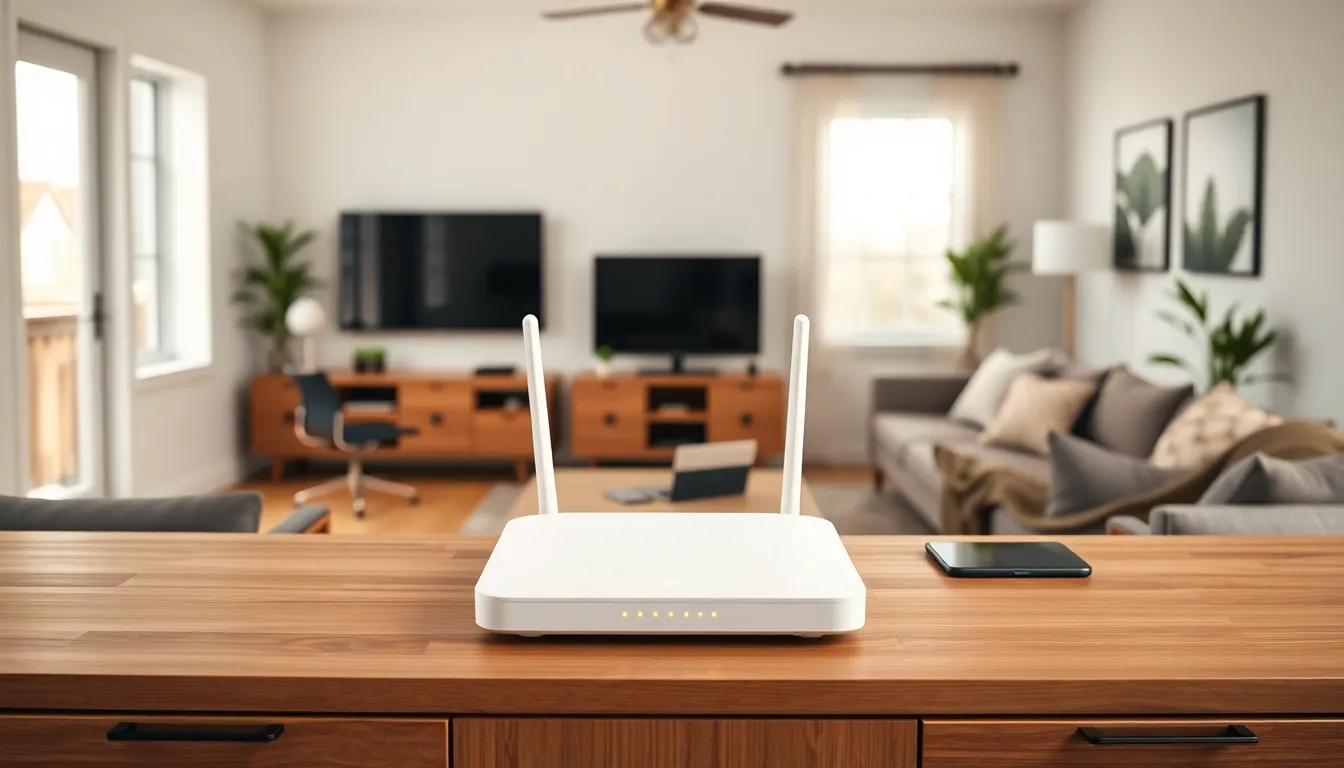

Home networking tips can transform a sluggish, unreliable connection into something that actually works. Most households now run dozens of connected devices, phones, laptops, smart TVs, gaming consoles, and IoT gadgets all competing for bandwidth. When the network struggles, everything suffers. Video calls freeze. Streams buffer. Downloads crawl.
The good news? A few strategic changes can dramatically improve performance. This guide covers the essential home networking tips that make a real difference: selecting the right router, placing it correctly, securing the network, reducing interference, and fixing common problems. These aren’t complicated upgrades. They’re practical steps anyone can take today.
Table of Contents
ToggleKey Takeaways
- Upgrade to a Wi-Fi 6 router if your household has 15+ connected devices for faster speeds and better efficiency.
- Place your router in a central, elevated location away from thick walls, metal objects, and appliances to maximize coverage.
- Secure your network by changing default passwords, enabling WPA3 encryption, and creating a separate guest network for IoT devices.
- Switch to the 5 GHz band and use a Wi-Fi analyzer app to find less congested channels for improved performance.
- Use wired Ethernet connections for gaming, streaming, and remote work whenever possible—they’re faster and more stable than wireless.
- Restart your router to fix common glitches, and run a wired speed test to determine if issues are with your network or your ISP.
Choose the Right Router for Your Needs
The router is the foundation of any home network. Choosing the wrong one limits everything else. A budget router from 2018 won’t deliver modern speeds, no matter how well it’s positioned.
First, consider the Wi-Fi standard. Wi-Fi 6 (802.11ax) routers handle multiple devices better than older Wi-Fi 5 models. They offer faster speeds and improved efficiency in crowded networks. For homes with 15+ connected devices, Wi-Fi 6 makes a noticeable difference.
Next, match the router to the internet plan. A gigabit internet connection paired with a router capped at 300 Mbps wastes money. Check the router’s maximum throughput and ensure it exceeds the ISP’s advertised speeds.
Square footage matters too. A small apartment might work fine with a single router. Larger homes or multi-story buildings often need mesh systems. Mesh networks use multiple units to blanket the entire space with coverage, eliminating dead zones.
Brand reliability counts. Asus, Netgear, TP-Link, and Eero consistently produce quality home networking equipment. Reading recent reviews helps identify models with firmware stability and good long-term support.
One often-overlooked home networking tip: check the number of Ethernet ports. Wired connections remain faster and more stable than wireless. Gamers, streamers, and remote workers benefit from plugging directly into the router when possible.
Optimize Router Placement for Maximum Coverage
Router placement affects performance more than most people realize. Tucking the router in a basement corner or behind furniture kills the signal before it reaches devices.
The best location is central and elevated. Place the router on a shelf or mount it on a wall, roughly at chest height. Radio waves spread outward and slightly downward, so higher placement extends coverage.
Keep the router away from thick walls, metal objects, and large appliances. Concrete, brick, and metal block wireless signals effectively. Refrigerators, filing cabinets, and mirrors also interfere with transmission.
Avoid placing routers near microwaves or cordless phones. These devices operate on similar frequencies (2.4 GHz) and cause interference during use.
Antennas matter when they’re adjustable. Position external antennas perpendicular to each other, one vertical, one horizontal, to improve reception across different device orientations. Some devices connect better to horizontal signals, others to vertical.
For multi-story homes, place the router on the floor where people spend the most time. If bedrooms are upstairs and the living room is downstairs, a central location on the main floor usually provides the best compromise.
These home networking tips about placement cost nothing but deliver immediate improvements. Before buying range extenders or mesh systems, test different router positions first.
Secure Your Network From Intruders
An unsecured network invites problems. Neighbors borrowing bandwidth slow things down. Hackers accessing the network can steal data, install malware, or use the connection for illegal activity.
Start with the password. Change the default router login credentials immediately, both the admin password and the Wi-Fi password. Default credentials are publicly available, making routers easy targets. Use strong, unique passwords with at least 12 characters mixing letters, numbers, and symbols.
Enable WPA3 encryption if the router supports it. WPA3 is the current security standard and significantly harder to crack than WPA2. If devices don’t support WPA3, use WPA2-AES as a fallback. Never use WEP, it’s obsolete and easily broken.
Disable WPS (Wi-Fi Protected Setup). While convenient, WPS has known vulnerabilities that attackers exploit.
Create a guest network for visitors and IoT devices. Smart speakers, cameras, and thermostats often have weaker security. Isolating them on a separate network prevents compromised devices from accessing computers and phones on the main network.
Keep router firmware updated. Manufacturers release patches that fix security holes. Most modern routers offer automatic updates, enable this feature.
These home networking tips protect both security and performance. Unauthorized users consume bandwidth and introduce risks that affect everyone on the network.
Reduce Interference and Congestion
Wireless signals face constant competition. Neighboring networks, household electronics, and even building materials degrade performance. Reducing interference improves speeds without upgrading hardware.
Switch to the 5 GHz band when possible. The 2.4 GHz band gets crowded because it’s used by older devices, baby monitors, Bluetooth gadgets, and microwave ovens. The 5 GHz band offers more channels and less interference, though it has shorter range.
Use a Wi-Fi analyzer app to check channel congestion. Free tools like NetSpot or Wi-Fi Analyzer show which channels neighbors use. Select a less crowded channel manually in the router settings. On the 2.4 GHz band, channels 1, 6, and 11 don’t overlap, pick the one with the fewest competing networks.
Limit bandwidth-heavy activities during peak hours. If multiple family members stream 4K video simultaneously while someone else downloads large files, the network will struggle. Quality of Service (QoS) settings in the router allow prioritization of specific devices or applications.
Consider powerline adapters for devices far from the router. These adapters use electrical wiring to carry network signals. They work well in homes where running Ethernet cables isn’t practical.
These home networking tips address the invisible factors that slow connections. Sometimes the problem isn’t the equipment, it’s the environment.
Troubleshoot Common Connection Issues
Even well-configured networks have problems. Knowing basic troubleshooting saves time and frustration.
The classic restart works more often than expected. Power cycling the router clears memory and resolves many glitches. Unplug the router, wait 30 seconds, then plug it back in. Wait two minutes for full reboot before testing.
Slow speeds on one device suggest a device-specific issue. Check that the device’s Wi-Fi adapter drivers are current. On laptops, disable power-saving modes that throttle network adapters. Forget the network and reconnect to clear corrupted settings.
Intermittent disconnections often indicate interference or overheating. Move the router to a cooler, more ventilated spot. Check if disconnections correlate with microwave use or other appliance activity.
If speeds are slow on all devices, run a speed test while connected directly to the router via Ethernet. If wired speeds match the ISP plan but wireless speeds don’t, the router or wireless configuration needs attention. If wired speeds are also slow, contact the ISP, the problem may be on their end.
DNS issues cause websites to load slowly or fail entirely. Try switching to public DNS servers like Google (8.8.8.8) or Cloudflare (1.1.1.1) in router or device settings.
These home networking tips cover the most frequent problems. Systematic troubleshooting identifies issues faster than random guessing.