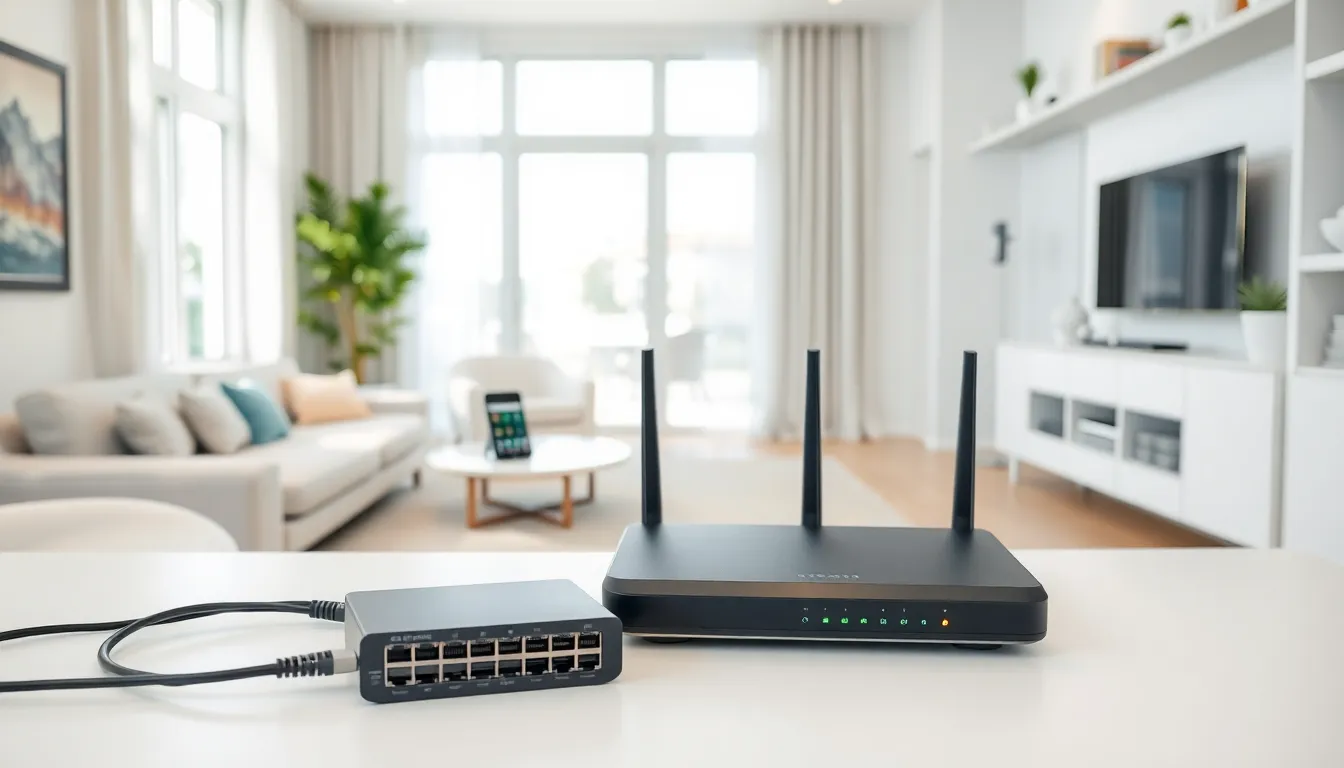

Best home networking starts with understanding what you actually need. A reliable home network connects devices, supports streaming, enables remote work, and keeps smart home gadgets running smoothly. Many households now rely on 10 or more connected devices daily. This guide breaks down the essentials, from basic concepts to troubleshooting tips, so anyone can build a network that performs well and stays secure.
Table of Contents
ToggleKey Takeaways
- The best home networking setup starts with quality equipment like a DOCSIS 3.1 modem, a Wi-Fi 6 router, and Cat 6 Ethernet cables for wired connections.
- Mesh systems outperform traditional routers in larger homes or spaces with thick walls by eliminating dead zones.
- Place your router in a central, elevated location away from metal objects and appliances to maximize Wi-Fi coverage.
- Secure your network by changing default credentials, using WPA3 encryption, and creating a separate guest network for visitors and IoT devices.
- Use Quality of Service (QoS) settings to prioritize bandwidth for video calls, gaming, and streaming during peak usage.
- Run regular speed tests and keep router firmware updated to maintain optimal home networking performance.
Understanding Home Network Basics
A home network is a system that connects devices within a household. These devices include computers, smartphones, tablets, smart TVs, and IoT gadgets like thermostats and security cameras. The network allows them to communicate with each other and access the internet.
Every home network has a few core components. The modem connects to an internet service provider (ISP) and brings internet access into the home. The router distributes that connection to devices via wired (Ethernet) or wireless (Wi-Fi) signals. Some households use a combination modem-router unit provided by their ISP.
Wi-Fi operates on different frequency bands. The 2.4 GHz band offers wider coverage but slower speeds. The 5 GHz band provides faster speeds but covers less distance. Newer Wi-Fi 6 and Wi-Fi 6E standards improve speed, capacity, and efficiency, especially in homes with many devices.
Bandwidth matters too. It determines how much data can flow through the network at once. Streaming 4K video, video conferencing, and online gaming all consume significant bandwidth. For the best home networking experience, households should choose an internet plan that matches their usage habits.
IP addresses identify each device on the network. The router assigns local IP addresses automatically through a system called DHCP. Understanding these basics helps homeowners make informed decisions about equipment and configuration.
Essential Home Networking Equipment
Choosing the right equipment forms the foundation of the best home networking setup. Quality hardware reduces connection drops, improves speeds, and handles multiple devices without slowing down.
A good modem should support DOCSIS 3.1 for cable internet users. This standard delivers faster download and upload speeds compared to older versions. Fiber internet users typically receive equipment from their ISP, though some providers allow third-party options.
Ethernet cables remain valuable for stationary devices. Cat 6 or Cat 6a cables support speeds up to 10 Gbps over short distances. Wired connections offer lower latency than Wi-Fi, ideal for gaming consoles, desktop computers, and streaming devices.
Network switches expand the number of wired connections available. A basic unmanaged switch works well for most homes. Those who want more control can invest in managed switches that allow traffic prioritization and network segmentation.
Powerline adapters offer an alternative when running Ethernet cables isn’t practical. They transmit network signals through electrical wiring. Performance varies based on the home’s electrical system, but modern adapters support speeds adequate for streaming and general use.
Routers and Mesh Systems
The router sits at the heart of any home network. Modern routers support dual-band or tri-band Wi-Fi, Quality of Service (QoS) settings, and built-in security features. Look for routers with at least Wi-Fi 5 (802.11ac), though Wi-Fi 6 routers deliver better performance in busy households.
For the best home networking in larger homes or spaces with thick walls, mesh systems outperform traditional routers. Mesh networks use multiple nodes placed throughout the home. Each node communicates with the others, creating seamless coverage without dead zones.
Popular mesh systems include options from brands like Eero, Google Nest, TP-Link Deco, and Netgear Orbi. Most mesh systems offer easy app-based setup and management. They automatically steer devices to the optimal node and frequency band.
When selecting a router or mesh system, consider the square footage of the home, the number of devices, and typical usage patterns. Homes with heavy streaming, gaming, and remote work benefit from higher-end models with faster processors and more memory.
Setting Up Your Home Network for Optimal Performance
Proper setup separates average networks from the best home networking configurations. Placement, settings, and security all affect performance.
Router placement matters more than most people realize. Position the router in a central location, elevated off the floor. Avoid placing it near metal objects, microwaves, or cordless phones, these create interference. Thick walls and floors weaken Wi-Fi signals, so strategic placement helps maintain coverage throughout the home.
Change the default network name (SSID) and password during setup. Default credentials are easy targets for unauthorized access. Create a strong password with a mix of letters, numbers, and symbols. Enable WPA3 encryption if the router supports it: otherwise, use WPA2.
Update the router’s firmware regularly. Manufacturers release updates that fix security vulnerabilities and improve performance. Many modern routers offer automatic updates, enable this feature when available.
Quality of Service (QoS) settings prioritize traffic for specific applications or devices. Assign higher priority to video calls and gaming to reduce lag during peak usage times. Most router interfaces include QoS options in the settings menu.
Create a separate guest network for visitors. This keeps guest devices isolated from primary devices and protects sensitive data. Guest networks also work well for IoT devices, which sometimes have weaker security.
For best home networking results, run periodic speed tests to verify the network performs as expected. Free tools like Ookla Speedtest or Fast.com measure download and upload speeds. Compare results against the internet plan’s advertised speeds.
Troubleshooting Common Home Network Issues
Even the best home networking setups encounter problems occasionally. Most issues have straightforward solutions.
Slow speeds often result from interference, outdated equipment, or too many connected devices. Switch to the 5 GHz band for faster speeds on compatible devices. Disconnect unused devices. If speeds remain slow, contact the ISP to verify there are no outages or plan limitations.
Intermittent disconnections may indicate overheating, firmware bugs, or interference. Restart the router by unplugging it for 30 seconds. Check for firmware updates. If the problem persists, try relocating the router or switching Wi-Fi channels in the settings.
Dead zones occur in areas the Wi-Fi signal cannot reach. Mesh systems solve this problem effectively. Alternatively, Wi-Fi extenders or access points can boost coverage in specific areas, though they may reduce overall speeds.
Devices not connecting could stem from incorrect passwords, MAC address filtering, or IP conflicts. Double-check the password. Restart both the device and the router. Release and renew the device’s IP address through network settings.
High latency during gaming or video calls suggests network congestion. Use QoS settings to prioritize these activities. When possible, connect gaming consoles and work computers directly via Ethernet for the lowest latency.
Keep a log of recurring issues. Patterns can reveal underlying problems, like interference from a neighbor’s network or an aging router that needs replacement. Investing in quality equipment upfront prevents many headaches later.