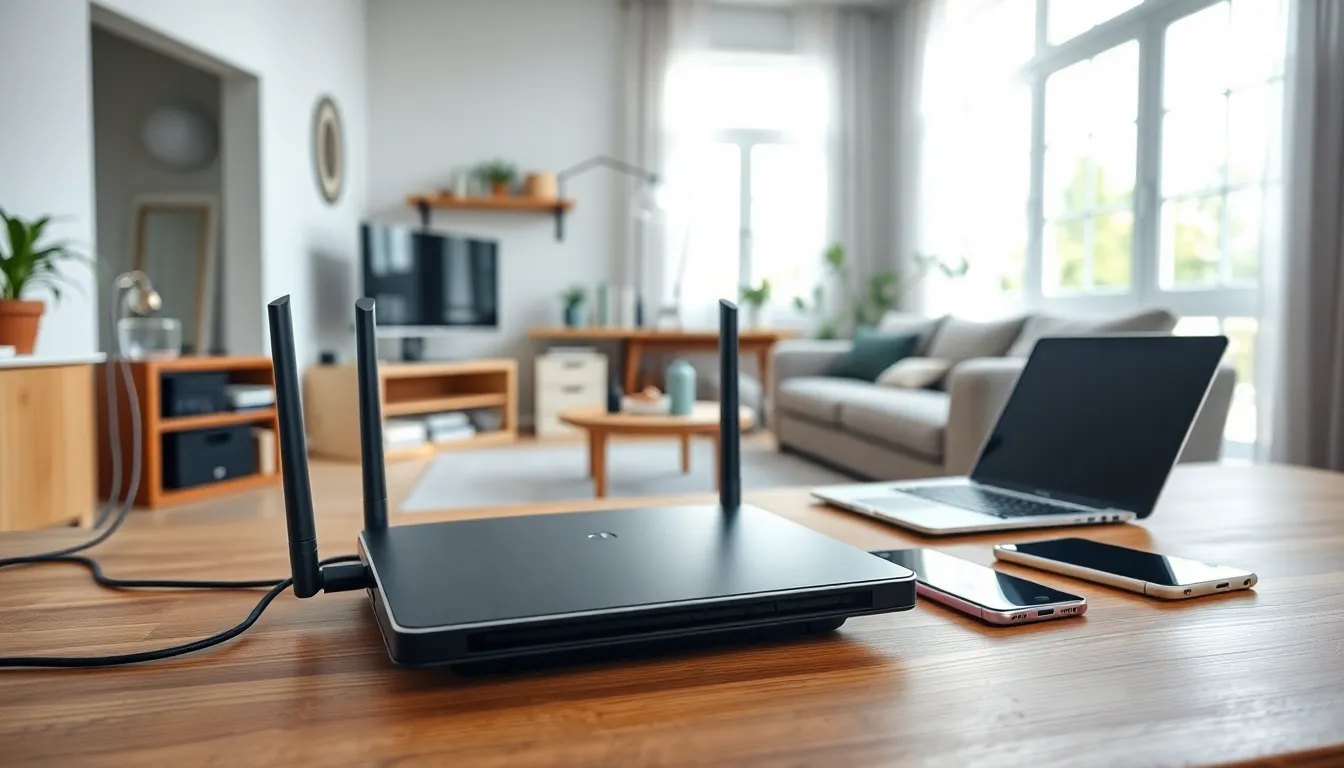

Home networking techniques determine how well devices connect, communicate, and perform inside a house. A strong home network supports streaming, gaming, remote work, and smart home devices without frustrating lag or dead zones. This guide covers everything from basic setup to advanced optimization strategies. Readers will learn how to choose between wired and wireless options, position routers for maximum coverage, extend signals to hard-to-reach areas, and protect their network from threats. Whether someone is building a network from scratch or improving an existing setup, these home networking techniques will deliver faster, more reliable connectivity.
Table of Contents
ToggleKey Takeaways
- Effective home networking techniques combine wired connections for speed-critical devices and wireless for mobile flexibility.
- Position your router centrally, elevated, and away from appliances like microwaves to maximize Wi-Fi coverage throughout your home.
- Use Quality of Service (QoS) settings to prioritize video calls and gaming traffic over background downloads for better performance.
- Mesh systems provide seamless whole-home coverage, while repeaters offer a budget-friendly but less efficient alternative for dead zones.
- Secure your network with WPA3 encryption, a strong 12+ character password, and a separate guest network for visitors and smart devices.
- Keep router firmware updated regularly to patch security vulnerabilities and improve overall network performance.
Understanding Your Home Network Setup
Every home network starts with a few core components. The modem connects to an internet service provider (ISP) and brings internet access into the home. The router distributes that connection to devices through wired or wireless signals. Many ISPs provide a combo modem-router unit, though separate devices often deliver better performance.
Devices on a home network fall into two categories: wired and wireless. Wired devices connect through Ethernet cables directly to the router. Wireless devices use Wi-Fi to communicate. Most households run a mix of both.
Understanding bandwidth matters too. Bandwidth refers to the total data capacity available from the ISP plan. If a household pays for 500 Mbps but has 20 devices competing for that bandwidth, each device gets less. Home networking techniques that prioritize traffic, like Quality of Service (QoS) settings, help manage this competition.
IP addresses also play a role. The router assigns local IP addresses to each device, creating a private network. The router itself has a public IP address that identifies the household to the outside internet. This distinction matters for security and troubleshooting.
Before making any changes, users should document their current setup. They should note the modem model, router model, ISP speed tier, and approximate device count. This baseline makes it easier to measure improvements after applying new home networking techniques.
Wired vs. Wireless Networking Options
Wired connections use Ethernet cables to link devices directly to the router. This method delivers the fastest speeds, lowest latency, and most stable connections. Gamers, video editors, and anyone transferring large files benefit from wired setups. Cat6 or Cat6a cables support speeds up to 10 Gbps over short distances.
Wireless connections rely on Wi-Fi radio signals. They offer convenience and mobility but sacrifice some speed and consistency. Walls, floors, appliances, and distance all weaken Wi-Fi signals. Modern Wi-Fi 6 (802.11ax) routers handle multiple devices better than older standards and reach speeds over 1 Gbps under ideal conditions.
Some home networking techniques combine both approaches. Desktop computers, smart TVs, and gaming consoles stay wired for reliability. Laptops, phones, and tablets connect wirelessly for flexibility. This hybrid strategy maximizes performance where it matters most.
Powerline adapters offer another option. These devices send network signals through existing electrical wiring. They work well in homes where running Ethernet cables isn’t practical. Performance varies based on electrical circuit quality, but newer models deliver speeds around 1-2 Gbps.
MoCA (Multimedia over Coax Alliance) adapters use coaxial TV cables instead. Homes already wired for cable TV can add MoCA adapters to create fast, reliable network connections without drilling holes or running new cables.
Optimizing Router Placement and Settings
Router placement dramatically affects Wi-Fi coverage. The ideal spot sits in a central location, elevated off the floor, and away from walls and metal objects. Kitchens are particularly bad because microwaves and refrigerators interfere with signals.
External antennas should point in different directions to spread coverage evenly. Some users angle one antenna vertically and another horizontally. This technique helps reach devices on multiple floors.
Channel selection matters in crowded areas. Most routers default to automatic channel selection, but manual tuning sometimes works better. Apps like Wi-Fi Analyzer show which channels nearby networks use. Switching to a less congested channel reduces interference.
The 2.4 GHz and 5 GHz bands serve different purposes. The 2.4 GHz band travels farther and penetrates walls better, but it’s slower and more crowded. The 5 GHz band offers faster speeds over shorter distances. Many routers broadcast both bands simultaneously. Users can assign devices to specific bands based on their needs.
Quality of Service (QoS) settings let users prioritize certain traffic types. Video calls and gaming benefit from high priority. Background downloads can wait. Most router admin panels include QoS options under advanced settings.
Firmware updates improve security and performance. Manufacturers release updates periodically to fix bugs and add features. Users should check for updates every few months or enable automatic updates if available. These home networking techniques cost nothing but deliver real improvements.
Extending Coverage With Mesh Systems and Repeaters
Large homes and homes with thick walls often need more than a single router. Dead zones, areas where Wi-Fi signals can’t reach, frustrate everyone. Two main solutions exist: mesh systems and repeaters.
Mesh systems use multiple units that work together as one network. Each unit (called a node) communicates with the others. Devices automatically connect to the strongest node as users move through the house. Popular mesh systems include Google Nest WiFi, Eero, and Netgear Orbi. These systems cost more upfront but deliver seamless coverage.
Wi-Fi repeaters (also called extenders) receive existing signals and rebroadcast them. They cost less than mesh systems but have drawbacks. Repeaters typically cut bandwidth in half because they use the same radio to receive and transmit. They also create separate network names, forcing users to switch manually.
Placement determines success for both options. Repeaters should sit halfway between the router and the dead zone, close enough to receive a strong signal, far enough to extend coverage meaningfully. Mesh nodes need similar spacing, usually 30-50 feet apart.
Some home networking techniques skip wireless extension entirely. Running Ethernet cables to distant areas and adding access points provides better performance than any repeater. Access points create new wireless coverage zones without the bandwidth penalty. This approach requires more installation effort but produces superior results.
Securing Your Home Network
An unsecured network invites trouble. Hackers can steal personal data, hijack devices, or use bandwidth for illegal activities. Basic security measures take minutes to carry out but provide lasting protection.
Start with a strong Wi-Fi password. Avoid common words, names, or number sequences. A good password contains at least 12 characters mixing letters, numbers, and symbols. WPA3 encryption offers the best protection, WPA2 remains acceptable if devices don’t support WPA3.
Change the default router login credentials. Most routers ship with usernames like “admin” and passwords like “password.” Attackers know these defaults. Creating unique credentials blocks easy unauthorized access.
Disable WPS (Wi-Fi Protected Setup). This feature simplifies device connections but contains security flaws. Hackers can exploit WPS to crack network passwords. Turning it off removes the vulnerability.
Create a guest network for visitors and smart home devices. Guest networks isolate traffic from the main network. If a guest’s phone carries malware or a smart device gets compromised, the damage stays contained.
Regular firmware updates patch security holes. Outdated firmware leaves known vulnerabilities exposed. Checking for updates, or enabling automatic updates, keeps defenses current.
Network monitoring apps reveal connected devices. Users should review this list periodically. Unknown devices might indicate unauthorized access. Most router admin panels show connected devices along with their MAC addresses for identification.